Video Converter Ultimate
 100% Secure. No Ads.
100% Secure. No Ads.
It is a common dilemma for many video creators to upscale low-resolution footage to 1080p or 4K. While editing a video, you may wonder how to increase the resolution within Sony VEGAS (now known as VEGAS Pro).
Sony VEGAS offers powerful tools to help you increase video resolution and get a sharper, more professional look. This article tells three common ways to upscale video in Sony VEGAS. Besides, we also introduce a compelling alternative for those seeking a more direct upscaling solution using AI.
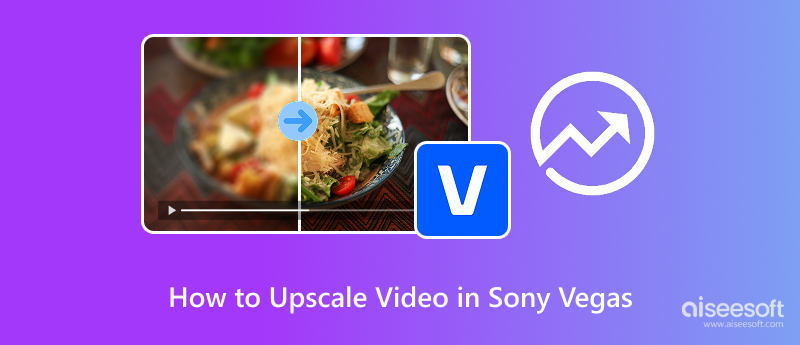
The first section tells the basic way to upscale a video in Sony VEGAS. It offers inherent features for a basic level of upscaling. Unlike AI-powered video upscaling, this process won’t employ algorithms to fill in the missing details or perform enhancements.

Click Apply and then OK to save your changes. This tells Sony VEGAS the target output resolution you want.

For most video upscaling projects in Sony VEGAS, you can choose Disable Resample. This option will simply stretch the original pixels without smoothing the edges. It will maintain the original detail. You can also try using “Smart Resample” or “Force Resample” to see if you are satisfied with the upscaling results.
If you are unhappy with VEGAS’s native Upscale feature, you can turn to some powerful third-party AI plugins. Reputable options for upscaling and enhancement include Topaz Video AI and Boris FX Continuum. You can download and install your desired plugin, and then look for it in the video effects list.
After exporting the original video from Sony VEGAS, you can upscale it with a plugin like Topaz Video AI. Select your preferred resolution, like 4K, and then apply the appropriate AI model. Once finished, you need to re-import it into VEGAS and then replace the source.
If you are using a newer VEGAS Pro version, you can use its built-in AI Upscale tool to increase the video resolution. You can apply the effect as a Media FX to get the best possible result.


For users who want to quickly upscale and enhance videos using AI, or who primarily need AI upscaling rather than complex editing, a dedicated all-in-one video enhancer is often the superior choice.
To replace the expensive Sony VEGAS Pro and better perform the AI video upscaling, one highly recommended alternative is Aiseesoft Video Converter Ultimate. It has a powerful, built-in AI Enhancer to help you increase resolution, sharpen edges, correct colors, add details, and do other suitable enhancements to efficiently improve the overall quality.
100% Secure. No Ads.
100% Secure. No Ads.


Question 1. Does native upscaling improve video quality?
Generally no. Native upscaling only stretches existing pixel information to fill a 4K frame. The process won’t add new detail. It primarily makes the video larger for a bigger screen.
Question 2. Can I upscale a video to 4K for free?
Most advanced, high-quality AI upscaling requires paid software or plans. Some free video upscaler or editor tools might offer basic scaling, but they often have feature or export limits. Some free ones won’t provide the same level of enhancement found in dedicated AI tools.
Question 3. Does Smart Resample in VEGAS Pro cause blurriness?
Yes, it will. Smart Resample generates interpolated frames to ensure smooth motion. The interpolation may lead to slight blurring or ghosting.
Conclusion
This guide tells three methods to upscale videos in Sony VEGAS. When you want to turn low-resolution sources into 4K, you can try using your desired solution. However, for superior results, you should choose third-party plugins or dedicated AI software like Aiseesoft Video Converter Ultimate. They can enhance your footage and make it display like stunning 4K.
 How to Upscale Video in CapCut: Tips, Fixes & Alternatives
Learn how to upscale video in CapCut to enhance quality, fix blurriness, and explore the best AI alternative for stunning high-resolution results.
 How to Upscale Video in HandBrake (1080p to 4K) & Best AI Settings
Learn how to upscale video resolution in HandBrake with our step-by-step guide. Discover the best RF settings and why AI upscaling (VidHex) offers superior 4K quality.
 Is Nero AI Video Upscaler Worth It? Full Review and Guide
This Nero AI Video Upscaler Review explores its features, performance, pricing, and real results to help you decide if it’s worth using or not.
 Leave your comment and join our discussion
Video Converter Ultimate is excellent video converter, editor and enhancer to convert, enhance and edit videos and music in 1000 formats and more.
100% Secure. No Ads.
100% Secure. No Ads.

*Required field
*Please enter a valid email