Accidentally deleting important text messages on your iPhone or Android can be frustrating - especially when you don’t have an iTunes or iCloud backup. Whether it’s personal conversations, verification codes, or business information, losing SMS can feel like losing something critical.
The good news is that deleted messages are not always gone forever. In this guide, we’ll show you practical ways to find and recover deleted text messages on both iPhone and Android devices - even without a backup.
Before you attempt any recovery steps, you must understand how mobile storage works to avoid permanent data loss. When a text message is deleted, it is not immediately erased from your phone's memory; instead, the space it occupied is marked as "available" for new data. To maximize your chances of a successful recovery, follow these rules immediately:
Stop Using Your Phone: Any new activity - receiving texts, taking photos, or even browsing the web - generates new data that can "overwrite" the deleted messages. Once overwritten, the original texts are gone forever.
Turn Off Wi-Fi and Mobile Data: Disable your internet connection to prevent automatic app updates or background cloud syncing that might overwrite the deleted fragments.
Enable Airplane Mode: Swipe to your control center and tap the "Airplane Mode" icon. This is the simplest way to "freeze" your device's current data state.
If your iPhone is running iOS 16 or a newer version, Apple has made recovery much easier by adding a built-in trash bin for messages. Deleted texts are stored here for up to 30 days before they are permanently erased.

If the messages are no longer in the "Recently Deleted" folder, you can recover deleted texts on your iPhone to their previous state using an official backup. Note that this process will replace the current data on your iPhone with the data from the backup date.
Option A: Using iCloud Backup

Option B: Using iTunes/Finder (Computer)

If you are an iPhone user and want to get your deleted text messages back, you can find the best solution in this part. As you are searching for the method to recover deleted texts, surely the regular iTunes/iCloud way can't help you. Here we sincerely recommend the powerful iPhone Deleted Texts Recovery to help you restore your SMS messages. You can free download it and have a try.
 100% Secure. No Ads.
100% Secure. No Ads.
Download, install and launch the deleted texts retrieving software on your computer. Connect your iPhone to it with USB cable. Choose the recovery mode of "Recover from iOS Device".
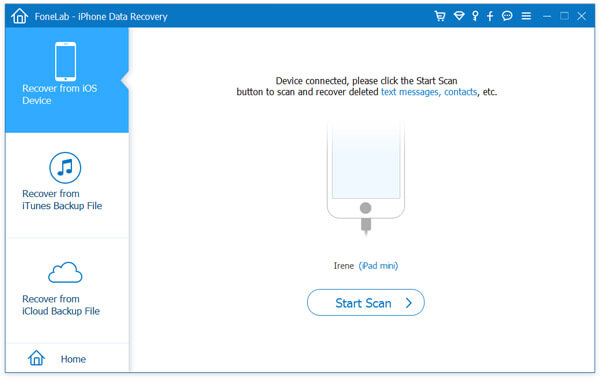
Click "Start Scan" button to scan iOS files on your iPhone. After that, you can see all kinds of iOS files are classified in categories on the left list.
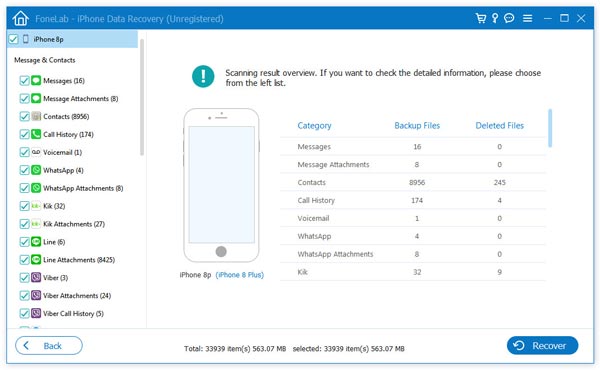
Click "Messages" on the left control and you can preview the detailed information of each existing/deleted iPhone text messages. Select the deleted texts you want to restore and click on "Recover" button to retrieve your deleted text messages from iPhone.
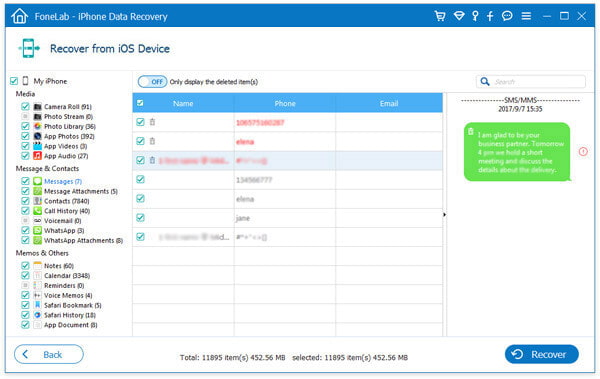
iPhone Deleted Texts Recovery enables you to directly retrieve the deleted texts on iPhone. Also, you are allowed to recover deleted text messages from iTunes or iCloud backup. It highly supports the recovery of many iOS data, such as photos, contacts, call logs, videos, audios, notes, and more, you can free download it and have a try.
Many modern Android devices, especially those from Samsung or those using the Google Messages app, feature a "Trash" or "Recycle Bin" folder. This folder temporarily holds deleted messages for 30 days before permanently erasing them.

If you do not see a "Trash" option, your specific messaging app may not support this feature, or the messages may have already exceeded the 30-day retention limit.
Recovering deleted texts from Android is much more difficult than restoring SMS on iPhone. When you delete some messages on iPhone, iTunes/iCloud may offer you a chance to get them back. But if you accidently remove important texts from your Samsung S7/6/5, HTC, LG, Sony, etc. it seems like you lose them forever. Actually, the deleted texts will still exist on your phone's storage in some way. You can rely on the professional Android Data Recovery to find them back.
100% Secure. No Ads.
100% Secure. No Ads.
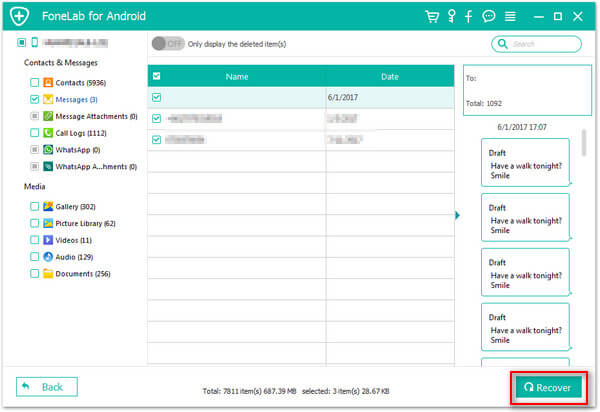
Install and open this all-featured Android text messages restoring tool on your PC/Mac. Connect your phone to it via USB cable. Select the recovery mode of "Android Data Recovery". It will automatically detect your Android phone.
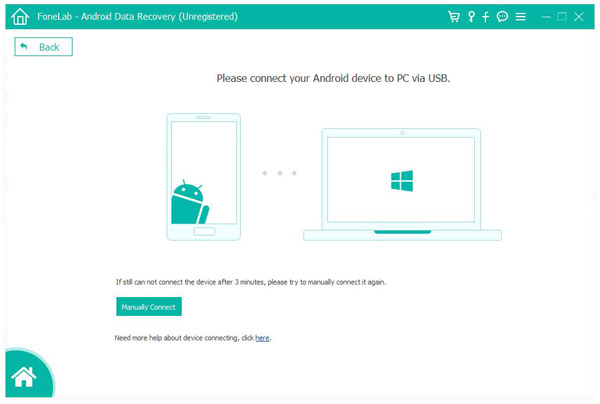
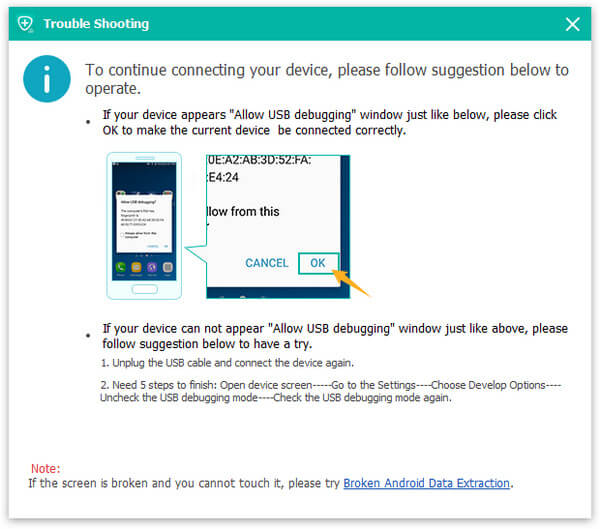
If your Android fail to be connected or detected, you need to check your phone to enable USB debug.
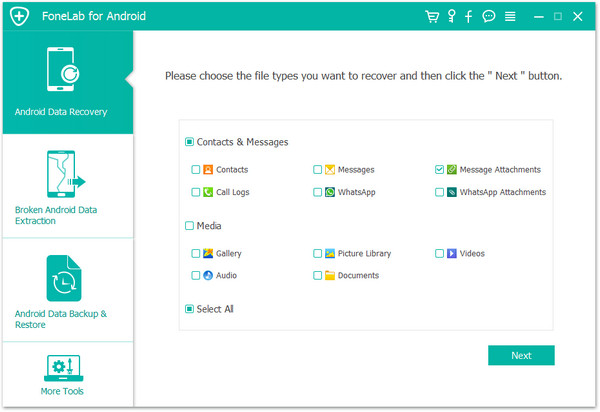
You can selectively choose "Messages" and other data types in the pop-up interface. Android files like contacts, call logs, pictures, videos, audios, etc. can also be recoveredd by this it. Click "Next" to scan all existing/deleted text messages on your phone.
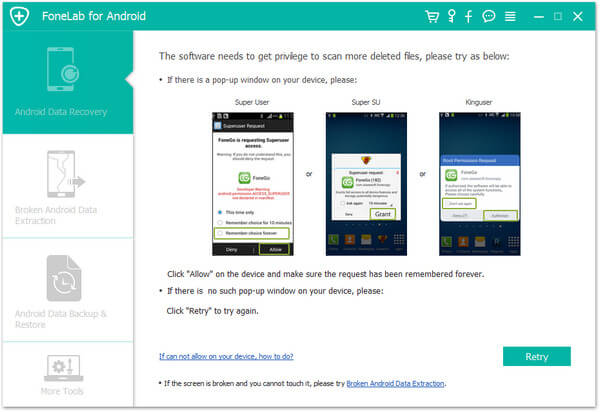
Your Android will be automatically rooted in this step. If you fail to root your Android phone, you can use "Advanced Root" to root Android phone successfully.
After scanning, click "Messages" to check and find your deleted texts in the right window. Choose the SMS messages that you want to retrieve. Then click "Recover" button to get all your selected text messages back. The recovered texts will be saved as CSV or HTML files based on your settings.
If you luckily see this guide, you probably get the way to find your deleted texts. Two effective ways are provided here to help you retrieve deleted text messages. Hope you get what you need after reading this post.
Can I recover deleted texts without a computer?
Yes, if your iPhone has a "Recently Deleted" folder (iOS 16+) or your Android has a ‘Recycle Bin’, you can restore them directly. You can also restore from an ‘iCloud Backup’ or ‘Google Drive Backup’ without a computer, though this usually requires erasing your device first.
Does Google Drive back up text messages on Android?
Yes, most Android phones automatically back up SMS to ‘Google Drive’ if the feature is enabled. You can check your status by going to ‘Settings’ > ‘Google’ > ‘Backup’. However, you generally need to perform a ‘Factory Reset’ to restore this data to your phone.
Do I need to root my Android phone for recovery?
For a ‘Standard Scan’ of existing data, rooting is not required. However, for a ‘Deep Scan’ to find deleted fragments in the internal database, many recovery tools require ‘Root Access’. Always try the ‘Standard Scan’ first to see if the messages are still accessible.
Conclusion
Losing important text messages can be a stressful experience, but as shown in this guide, there are multiple ways to recover deleted text messages on iPhone and Android. Whether you utilize the built-in "Recently Deleted" folders in iOS 16 and modern Android apps, or restore from an official "iCloud" or "Google Drive" backup, your data is often still within reach.
However, if you don't have a backup or the 30-day recovery window has passed, professional tools like "iPhone Data Recovery" or "Android Data Recovery" provide a powerful last resort by scanning your device's internal database for hidden fragments. To ensure the highest success rate, remember the golden rule: stop using your phone immediately to prevent data overwriting. By combining regular backups with these recovery techniques, you can protect your valuable conversations and enjoy peace of mind.
 How to Restore iPhone Message from iTunes Backup
This article tells you how to extract all messages, including MMS, SMS, iMessages from your iTunes backup.
 How to Recover Deleted Text Messages on Android
Can you recover deleted text messages on Android? Learn how to recover deleted text messages on Android in this post.
 How to Recover Deleted Photos (from iPhone/Android)
Is there any way to recover my deleted photos? You can learn how to recover deleted photos/pictures from iPhone and Android from this guide.
 Leave your comment and join our discussion
*Required field
*Please enter a valid email